
- Go to Insert > WordArt
- Pick the WordArt style you want.
-
Type your text.
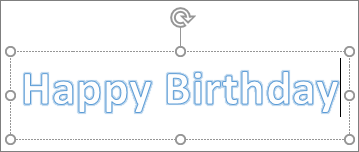
Note: To convert existing text to WordArt, select the text, and then select Insert > WordArt.
Change the color
- Select the WordArt text to change.
-
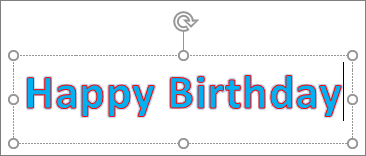
On Shape Format or Drawing Tools Format, select Text Fill or Text Outline, and pick the color you want.

-
Click or tap outside of your text box to see the effect.
Choose a text effect
- Select the WordArt text to change.
-
Go to Shape Format or Drawing Tools Format > Text Effects >Transform.

- Pick the effect you want.
- Click outside of your text box to see the effect.
For more on shaping WordArt, see Curve text around a circle or other shape.
Rotate it
-
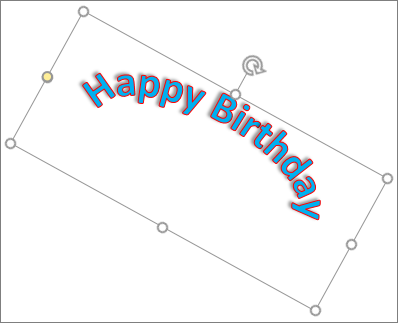
Select the WordArt, and then drag the circular rotation handle at the top of the box.
-
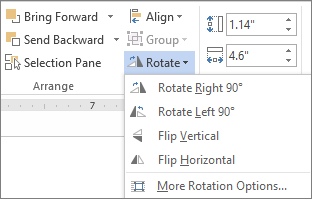
To flip WordArt or rotate it 90 degrees, go to Shape Format or Drawing Tools Format > Rotate, and then select an option.
Change the Font
- Select the WordArt text to change.
- Go to Home and select options such as font style, font size, or underline.
Comments
0 comments
Please sign in to leave a comment.