
If your SharePoint lists or libraries are set to track versions, you can restore a previous version of a list item or file. To learn how you can delete a version, all versions, or just minor versions of an item or file if your list or library is configured for it, see Delete a previous version on an item or file in SharePoint.
For info about turning versioning on, see Turn on version history in SharePoint. For info about restoring SharePoint files stored in OneDrive, see Restore a previous version of a file in OneDrive.
Restore a previous version in SharePoint
- Open the list or library with the item or document that you want to view history.
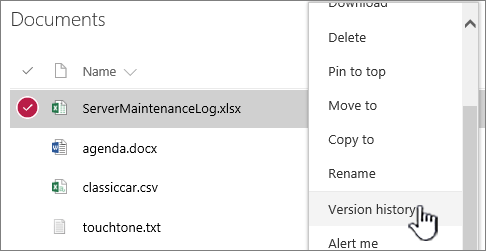
- Next to the item for which you want to view history, select the ... (ellipses).
-
Select Version history.
If you don't see Version history, select More, and then select Version history.
-
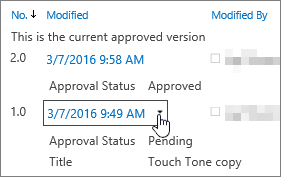
In the Version history dialog, hover your mouse over the date link on an earlier version. To show the menu, select the down arrow.
-
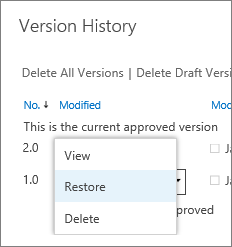
In the menu, select Restore.
- To restore your selected version as the current version, select OK.
Note: SharePoint doesn't remove the earlier version you just restored. It creates a copy and makes it the latest version.
- When you're done, select the X in the upper right corner of the Version history window to close it.

Comments
0 comments
Please sign in to leave a comment.