
Comments
Comments have a Reply box. When people reply, you can see several comments connected together, showing a virtual conversation in the workbook. If you need to discuss data with other people, then use a comment.
Add a comment
- Right-click a cell and click New Comment.
- In the comment box, type your comment. You can also @mention someone to include them in the comment thread.
Move your cursor off of the cell.
The comment disappears, but a purple comment indicator remains. To see the comment again, hover over the cell.
Review comments
- Select the Review tab, and click Previous Comment or Next Comment to see each comment in sequence.
Show/Hide all comments at once
- Select the Review tab, and click Show Comments. A new Comments task pane will load on the right displaying all your comments in order.
Delete a comment
- Click the More thread actions button (...) in the comment's upper right-hand corner, and select Delete thread.
Resolve a thread
- Click the More thread actions button (...) in the comment's upper right-hand corner, and select Resolve thread.
Notes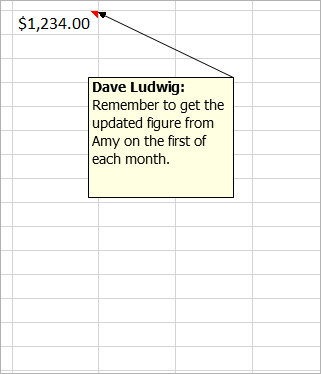
Notes (formerly called "comments" in earlier versions of Excel) don't have a Reply box. Notes are just for adding annotations or reminders in cells. If you don't need to have a discussion about the data, then use a note.
Add a note
- Right-click a cell and click New Note.
- In the note box, type your note.
Click outside the note.
The note box disappears, but a red note indicator remains. To see the note again, hover over the cell.
Note: To format your comment, highlight the text you want to change, right-click on the note and choose Format Comment.
Review notes
- Select the Review tab > Notes, and click Previous Note or Next Note to see each note in sequence.
Show/Hide all notes at once
- Select the Review tab > Notes >Show All Notes. This will toggle your notes on and off.
Move a note
- Click on a note's border, then drag it.
Resize a note
- Click on a note's border, then drag one of the sizing handles on its side or corner.
Delete a note
- Click on the note's border, and press Delete.
Convert to Comments
- If you want to take advantage of threaded comments in an existing note, select the Review tab > Notes > Convert to Comments.
Comments
0 comments
Please sign in to leave a comment.