
You and your colleagues can open and work on the same Excel workbook. This is called co-authoring. When you co-author, you can see each other's changes quickly—in a matter of seconds. And with certain versions of Excel, you'll see other people's selections in different colors. If you're using a version of Excel that supports co-authoring, you can select Share in the upper-right corner, type email addresses, and then choose a cloud location. But if you need more details, like which versions are supported and where the file can be stored, this article will walk you through the process.
To co-author in Excel for Windows desktops, you need to make sure certain things are set up before you start. After that, it just takes a few steps to co-author with other people.
What you need to co-author
- You need a Microsoft 365 subscription.
- You need the latest version of Excel for Microsoft 365 installed. Note that if you have a work or school account, you might not have a version that supports co-authoring yet. This might be because your administrator hasn’t provided the latest version to install.
- You need to sign in to Microsoft 365 with your subscription account.
- You need to use Excel Workbooks in .xlsx, .xlsm, or .xlsb file format. If your file isn’t in this format, open the file and then select File > Save As > Browse > Save as type. Change the format to Excel Workbook (*.xlsx). Note that co-authoring does not support the Strict Open XML Spreadsheet format.
Step 1: Upload the Workbook
Using a web browser, upload or create a new workbook on OneDrive, OneDrive for Business, or a SharePoint Online library. Note that SharePoint On-Premises sites (sites that are not hosted by Microsoft) do not support co-authoring. If you aren't sure which one you're using, ask the person in charge of your site, or your IT department.
Step 2: Share it
- If you uploaded the file, select the filename to open it. The workbook will open in a new tab in your web browser.
- Select the Open in Desktop App button.
- When the file opens in the Excel desktop app, you may see a yellow bar which says the file is in Protected View. Select the Enable Editing button if that's the case.
- Select Share in the upper-right corner.
- By default, all recipients will be able to edit the workbook, however, you can change the settings by selecting the can edit option.
- Type email addresses in the address box, and separate each with a semicolon.
- Add a message for your recipients. This step is optional.
- Select Send.
Note: If you want to send the link yourself, don't select the Send button. Instead, select Copy link at the bottom of the pane.
Step 3: Other people can open it
If you selected the Share button, people will receive an email message inviting them to open the file. They can select the link to open the workbook. A web browser will open, and the workbook will open in Excel for the web. If they want to use the Excel desktop app to co-author, they can select Edit in Desktop App. However, they'll need a version of the Excel app that supports co-authoring. Excel for Android, Excel for iOS, Excel Mobile, and Excel for Microsoft 365 subscribers are the versions that currently support co-authoring. If they don't have a supported version, they can edit in the browser.
Note: If they're using the latest version of Excel, PowerPoint, or Word there's an easier way—they can select File > Open and select Shared with Me.
Step 4: Co-author with others
With the file still open in Excel, make sure that AutoSave is on in the upper-left corner. When others eventually open the file, you'll be co-authoring together. You know you're co-authoring if you see pictures of people in the upper-right of the Excel window. (You may also see their initials, or a "G" which stands for guest.)
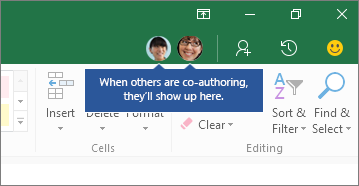
Co-authoring tips:
- You might see other people's selections in different colors. This happens if they're using Excel for Microsoft 365 subscribers, Excel for the web, Excel for Android, Excel Mobile, or Excel for iOS. If they're using another version, you won't see their selections, but their changes will appear as they're working.
- If you see other people's selections in different colors, they'll show up as blue, purple and so on. However, your selection will always be green. And on other people’s screens, their own selections will be green as well. If you lose track of who’s who, rest your cursor over the selection, and the person’s name will be revealed. If you want to jump to where someone is working, select their picture or initials, and then select the Go to option.
Comments
0 comments
Please sign in to leave a comment.