
Filter Data in a PivotTable with a slicer
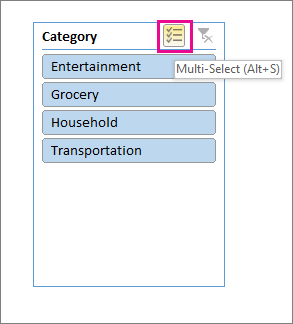
You can insert one or more slicers for a quick and effective way to filter your data. Slicers have buttons you can click to filter the data, and they stay visible with your data, so you always know what fields are shown or hidden in the filtered PivotTable.
- Select any cell within the PivotTable, then go to Pivot Table Analyze > Insert Slicer
 .
. - Select the fields you want to create slicers for. Then select OK.
- Excel will place one slicer on the worksheet for each selection you made, but it's up to you to arrange and size them however is best for you.
- Click the slicer buttons to select the items you want to show in the PivotTable.
Filter data manually
Manual filters use AutoFilter. They work in conjunction with slicers, so you can use a slicer to create a high-level filter, then use AutoFilter to dive deeper.
-
To display AutoFilter, select the Filter drop-down arrow
 , which varies depending on the report layout.
Compact Layout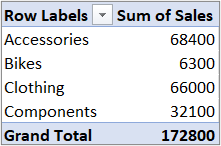

The Value field is in the Rows area The Value field is in the Columns area Outline/Tabular Layout
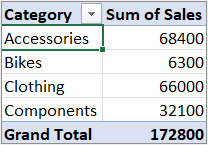
Displays the Values field name in the top left corner - To filter by creating a conditional expression, select Label Filters, and then create a label filter.
- To filter by values, select Values Filters and then create a values filter.
- To filter by specific row labels (in Compact Layout) or column labels (in Outline or Tabular Layout), uncheck Select All, and then select the check boxes next to the items you want to show. You can also filter by entering text in the Search box.
- Select OK.
Tip: You can also add filters to the PivotTable's Filter field. This also gives you the ability to create individual PivotTable worksheets for each item in the Filter field. For more information, see Use the Field List to arrange fields in a PivotTable.
Show the top or bottom 10 items
You can also apply filters to show the top or bottom 10 values or data that meets the certain conditions.
-
To display AutoFilter, select the Filter drop-down arrow
, which varies depending on the report layout.
Compact LayoutThe Value field is in the Rows area The Value field is in the Columns area Outline/Tabular Layout
Displays the Values field name in the top left corner - Select Values Filters > Top 10.
- In the first box, select Top or Bottom.
- In the second box, enter a number.
- In the third box, do the following:
- To filter by number of items, pick Items.
- To filter by percentage, pick Percentage.
- To filter by sum, pick Sum.
- In the fourth box, select a Values field.
Use a report filter to filter items
By using a report filter, you can quickly display a different set of values in the PivotTable. Items you select in the filter are displayed in the PivotTable, and items that are not selected will be hidden. If you want to display filter pages (the set of values that match the selected report filter items) on separate worksheets, you can specify that option.
Add a report filter
-
Click anywhere inside the PivotTable.
The PivotTable Fields pane appears.
- In the PivotTable Field List, click on the field in an area and select Move to Report Filter.
You can repeat this step to create more than one report filter. Report filters are displayed above the PivotTable for easy access.
- To change the order of the fields, in the Filters area, you can either drag the fields to the position that you want, or double-click on a field and select Move Up or Move Down. The order of the report filters will be reflected accordingly in the PivotTable.
Display report filters in rows or columns
- Click the PivotTable or the associated PivotTable of a PivotChart.
- Right-click anywhere in the PivotTable, and then click PivotTable Options.
- In the Layout tab, specify these options:
- In Report Filter area, in the Arrange fields list box, do one of the following:
- To display report filters in rows from top to bottom, select Down, Then Over.
- To display report filters in columns from left to right, select Over, Then Down.
- In the Filter fields per column box, type or select the number of fields to display before taking up another column or row (based on the setting of Arrange fields you specified in the previous step).
- In Report Filter area, in the Arrange fields list box, do one of the following:
Select items in the report filter
- In the PivotTable, click the dropdown arrow next to the report filter.
-
Select the checkboxes next to the items that you want to display in the report. To select all items, click the checkbox next to (Select All).
The report filter now displays the filtered items.
Display report filter pages on separate worksheets
- Click anywhere in the PivotTable (or the associated PivotTable of a PivotChart ) that has one or more report filters.
- Click PivotTable Analyze (on the ribbon) > Options > Show Report Filter Pages.
- In the Show Report Filter Pages dialog box, select a report filter field, and then click OK.
Filter by selection to display or hide selected items only
- In the PivotTable, select one or more items in the field that you want to filter by selection.
- Right-click an item in the selection, and then click Filter.
- Do one of the following:
- To display the selected items, click Keep Only Selected Items.
-
To hide the selected items, click Hide Selected Items.
Tip: You can display hidden items again by removing the filter. Right-click another item in the same field, click Filter, and then click Clear Filter.
Turn filtering options on or off
If you want to apply multiple filters per field, or if you don’t want to show Filter buttons in your PivotTable, here’s how you can turn these and other filtering options on or off:
- Click anywhere in the PivotTable to show the PivotTable tabs on the ribbon.
- On the PivotTable Analyze tab, click Options.
- In the PivotTable Options dialog box, click the Totals & Filters tab.
- In the Filters area, check or uncheck the Allow multiple filters per field box depending on what you need.
- Click the Display tab, and then check or uncheck the Display Field captions and filters check box, to show or hide field captions and filter drop downs.
Comments
0 comments
Please sign in to leave a comment.