
Sorting is one of the most common tools for data management. In Excel, you can sort your table by one or more columns, by ascending or descending order, or do a custom sort.
Sort the table
- Select a cell within the data.
- Select Home > Sort & Filter.

Or, select Data > Sort.
- Select an option:
- Sort A to Z - sorts the selected column in an ascending order.
- Sort Z to A - sorts the selected column in a descending order.
Custom Sort - sorts data in multiple columns by applying different sort criteria.
Here's how to do a custom sort:
- Select Custom Sort.
- Select Add Level.
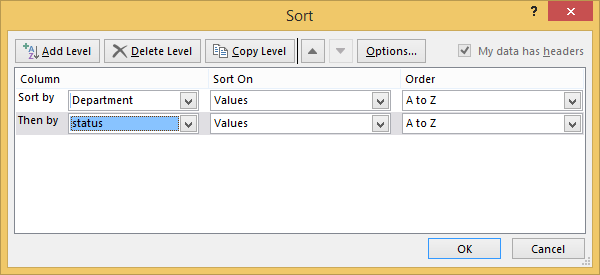
- For Column, select the column you want to Sort by from the drop-down, and then select the second column you Then by want to sort. For example, Sort by Department and Then by Status.
- For Sort On, select Values.
- For Order, select an option, like A to Z, Smallest to Largest, or Largest to Smallest.
For each additional column that you want to sort by, repeat steps 2-5.
Note: To delete a level, select Delete Level.
- Check the My data has headers checkbox, if your data has a header row.
- Select OK.
Comments
0 comments
Please sign in to leave a comment.