
Important: The calculated results of formulas and some Excel worksheet functions may differ slightly between a Windows PC using x86 or x86-64 architecture and a Windows RT PC using ARM architecture. Learn more about the differences.
Important: In this article we discuss XLOOKUP and VLOOKUP, which are similar. Try using the new XLOOKUP function, an improved version of VLOOKUP that works in any direction and returns exact matches by default, making it easier and more convenient to use than its predecessor.
Create a formula that refers to values in other cells
- Select a cell.
-
Type the equal sign =.
Note: Formulas in Excel always begin with the equal sign.
-
Select a cell or type its address in the selected cell.
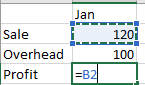
- Enter an operator. For example, – for subtraction.
-
Select the next cell, or type its address in the selected cell.

- Press Enter. The result of the calculation appears in the cell with the formula.
See a formula
When a formula is entered into a cell, it also appears in the Formula bar.

-
To see a formula in the formula bar, select a cell.

Enter a formula that contains a built-in function
- Select an empty cell.
- Type an equal sign = and then type a function. For example, =SUM for getting the total sales.
- Type an opening parenthesis (.
-
Select the range of cells, and then type a closing parenthesis).

- Press Enter to get the result.
Download our Formulas tutorial workbook
We've put together a Get started with Formulas workbook that you can download. If you’re new to Excel, or even if you have some experience with it, you can walk through Excel’s most common formulas in this tour. With real-world examples and helpful visuals, you’ll be able to Sum, Count, Average, and Vlookup like a pro.
Formulas in-depth
You can browse through the individual sections below to learn more about specific formula elements.
Comments
0 comments
Please sign in to leave a comment.