
Freeze rows or columns
Freeze the first column
- Select View > Freeze Panes > Freeze First Column.
The faint line that appears between Column A and B shows that the first column is frozen.
Freeze the first two columns
- Select the third column.
- Select View > Freeze Panes > Freeze Panes.
Freeze columns and rows
- Select the cell below the rows and to the right of the columns you want to keep visible when you scroll.
- Select View > Freeze Panes > Freeze Panes.
Unfreeze rows or columns
On the View tab > Window > Unfreeze Panes.
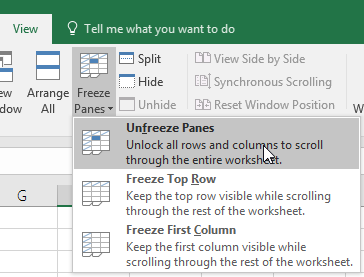
Note: If you don’t see the View tab, it’s likely that you are using Excel Starter. Not all features are supported in Excel Starter.
Comments
0 comments
Please sign in to leave a comment.